All Mii ideas
Peter Griffin Mii for Tomodachi Life
Funny Mii Idea

Peter Griffin Mii for Tomodachi Life

The lovable dad from Quahog, Rhode Island.

#tv#family-guy#comedy

Peter Griffin Mii Quick Facts

Peter Griffin Mii — cast at a glance

Voiced by
Seth MacFarlane
In Tomodachi Life

Peter is all volume and no filter — give your Peter Griffin Mii a loud, goofy voice on LTD's sliders so his "hehehehehe" laugh carries right across your island.

About the Peter Griffin Mii

Character File

Peter Löwenbräu Griffin Sr. is the protagonist of the American animated sitcom Family Guy, voiced by series creator Seth MacFarlane. He made his television debut, along with the rest of the Griffin family, in the episode "Death Has a Shadow" on January 31, 1999.

01 — Personality

Recommended personality for your Peter Griffin Mii: Merrymaker

Turns any moment into a good time and makes friends with everyone. The ultimate high-energy social catalyst.In Tomodachi Life, set this Mii's sliders so Speech + Movement totals 8–11 and Thinking + Energy totals 8–11. See the full Merrymaker guide →

Why this fitsPeter is loud, impulsive, and treats every dinner table moment like a stand-up bit. That high-volume, low-restraint profile fits Merrymaker (high Speech + Movement, mid Thinking + Energy).

02 — How to Make This Mii

How to Make a Peter Griffin Mii in Tomodachi Life

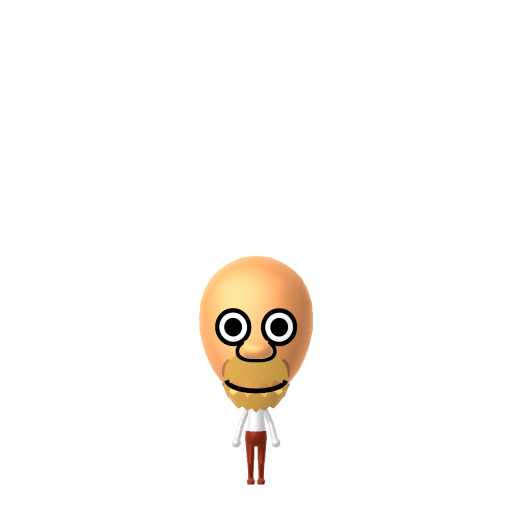
To make a Peter Griffin Mii in Tomodachi Life: Living the Dream, open Mii Maker and build a heavy frame with a round, balding head and a prominent cleft chin, then add Peter's signature round wire-rimmed glasses. The picker-by-picker walkthrough below works for both Nintendo Switch (LTD) and 3DS (original Tomodachi Life).

Use the system Mii Maker, then bring the Mii into Tomodachi Life: Living the Dream.

Body & Build

  1. 1
    Set gender to "Male".
  2. 2
    Set favorite color to white.
  3. 3
    Set height to 100%.
  4. 4
    Set weight to 100%.

Face Shape & Skin

  1. 5
    Set face type.

Hair

  1. 6
    Set hair style.
    ⋯
    Row 2 · Column 2
  2. 7
    Set hair color in the expanded colors menu.

Eyes

  1. 8
    Set eyes.
    ⋯
    ⋯
    Row 7 · Column 3
  2. 9
    Make eyes 1 smaller.
  3. 10
    Rotate outer edge of the eyes all the way down, then rotate it 3 ticks back up.
  4. 11
    Move eyes 1 closer.
  5. 12
    Move eyes 8 ticks up.

Eyebrows

  1. 13
    Set eyebrows.
    ⋯
    Row 2 · Column 4
  2. 14
    Set eyebrows color in the expanded colors menu.
  3. 15
    Make eyebrows 3 smaller.
  4. 16
    Unsquash the eyebrows 1 to the right.
  5. 17
    Rotate outer edge of the eyebrows 4 ticks down.
  6. 18
    Move eyebrows 2 closer.
  7. 19
    Move eyebrows 3 ticks up.

Nose

  1. 20
    Set nose.
    ⋯
    Row 2 · Column 1
  2. 21
    Move nose 2 ticks up.

Mouth

  1. 22
    Set mouth.
    ⋯
    ⋯
    Row 4 · Column 1
  2. 23
    Make mouth 1 smaller
  3. 24
    Squash the mouth 1 to the left.
  4. 25
    Move mouth 11 ticks up.

Glasses

  1. 26
    Set glasses type.
    ⋯
    Row 2 · Column 1
  2. 27
    Make glasses 2 smaller
  3. 28
    Move glasses 8 ticks up.

Diagrams show where the option sits in the Mii Maker picker (4 columns, scroll to reach later rows). Editor menus differ slightly between regions and console revisions — if an exact option is missing, pick the closest one.

Mii Studio data code

Peter Griffin's full appearance as a Mii Studio data string. Drop it into Mii rendering tools or community Mii editors that accept Studio codes (it's not a console import — for the game itself use the steps above).

08007f0308030326010404080201110007000007000a00080203020200337f040002140213030f0204000a040507
03 — QR Code
Peter Griffin Mii QR code for the Nintendo 3DS

Scan this Peter Griffin Mii QR code

This is a 3DS-format Mii QR code generated from Peter Griffin's Mii data. On a Nintendo 3DS, open Mii Maker → QR Code / Image Options → Scan QR Code and point the camera at it, then bring the Mii into the original Tomodachi Life. The Switch / Switch 2 has no camera, so it can't scan Mii QR codes — for Tomodachi Life: Living the Dream use the step-by-step instructions above (or the online Mii creator).

Download QR code

Get the Peter Griffin Mii look

Build cheat-sheet

Feature → the move to make in Mii Maker

  1. Build

    Peter is big and round-bellied — push the weight slider well past the middle and keep the height around average for that heavy-set frame.

  2. Head & chin

    Give him a round, balding head with only a little hair at the sides and a prominent cleft chin — the chin is one of his most recognisable features.

  3. Glasses

    His round wire-rimmed glasses are essential — add a round glasses accessory.

  4. Outfit & colour

    Dress him in his white shirt and green trousers using LTD's in-game clothing. He's a human cartoon, so a Mii captures him well with standard parts.

Pair your Peter Griffin Mii with

Lois Griffin

His wife and the show's central couple — recreate her for the chaotic Sweethearts dynamic Family Guy is built on.

Brian Griffin

The family's witty, martini-drinking talking dog and Peter's unlikely best friend.

In Tomodachi Life

Recreate Lois and Brian as their own Miis and house them near your Peter Griffin Mii to rebuild the household — but Tomodachi Life: Living the Dream won't recreate Family Guy for you. Bonds there grow from proximity and shared time, and romance runs on dating preferences and zodiac compatibility, so whether Peter and Lois play out their bickering marriage is down to how you play.

Did you know? — Peter Griffin Mii

  1. Peter is voiced by Family Guy creator Seth MacFarlane, who also voices Brian, Stewie and Quagmire — often holding whole conversations with himself.

  2. He made his television debut, with the rest of the Griffins, in the episode "Death Has a Shadow" on January 31, 1999.
  3. His full name is given as Peter Löwenbräu Griffin Sr. — the middle name being one of the show's many throwaway gags.

  4. One of his signature running bits is an all-out, minutes-long brawl with a giant anthropomorphic chicken named Ernie, sparked by the pettiest of grudges.

Peter Griffin Mii on your island

Picture it

A Merrymaker-type Peter Griffin is the island's chaos engine — loud, impulsive and treating every shared moment like a stand-up bit. Merrymakers bring relentless high-volume energy, so drop him among your calmer residents for maximum comedy. He rooms most comfortably with other lively personalities, which is what LTD's roommate harmony rewards. His love life isn't something he can plan, though — planning isn't really his strength: crushes in Tomodachi Life: Living the Dream run on dating preferences, random chance and birthday/zodiac compatibility, never personality, so recreate Lois nearby and let the island stage their marriage.

Life on your island

Peter Griffin Mii — FAQ

How do you make a Peter Griffin Mii in Tomodachi Life?

Build a heavy frame with a round balding head, a prominent cleft chin and round wire-rimmed glasses, then dress him in a white shirt and green trousers with LTD's in-game clothing. He's a human cartoon, so the Mii captures him well — follow the picker-by-picker steps above for Switch (LTD) or 3DS.

Should I make Lois Griffin too?

Yes — Peter and Lois are Family Guy's central married couple, so they make a great Sweethearts pair. Build both and house them together; LTD pairs Miis through preferences, crushes and birthdays rather than canon, so the matchmaking is yours to direct.

Who voices Peter Griffin?

Series creator Seth MacFarlane, who also voices Brian, Stewie and Quagmire. On your island you can echo that with LTD's voice sliders — push them loud and goofy for Peter's signature laugh.

What personality should a Peter Griffin Mii have?

Merrymaker fits best — set high Speech + Movement with mid Thinking + Energy in the panel above. It matches his loud, impulsive, turn-everything-into-a-bit energy on your island.

Sources: WikipediaCharacter facts are grounded in the source(s) above; Mii-Maker mapping is our own craft guidance.

More Miis like Peter Griffin

Have your own Mii?

Paste a Mii Studio code or upload a Mii QR image into the QR code Mii decoder to get this same step-by-step recreation guide for it.

Want to design your own?

Build a Mii from scratch in the online Mii creator, then bring its code here for rebuild steps.