Mii Creator Online for Tomodachi Life
A free Mii creator online — make and customize a Mii right in your browser. Pick a face shape, hair, eyes, eyebrows, nose, mouth, facial hair, glasses and more from visual thumbnail grids, with a live preview that updates as you go. Hit Randomize for a fresh Mii, then copy the Mii Studio code or take the recreation steps over to the Mii Decoder to rebuild it in Tomodachi Life. No download, no account — everything runs client-side.
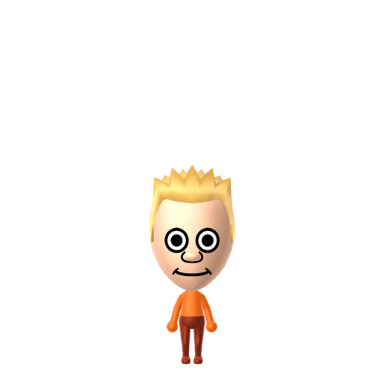
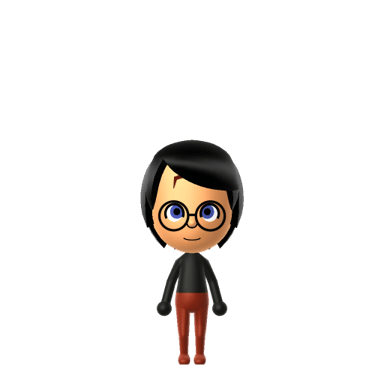
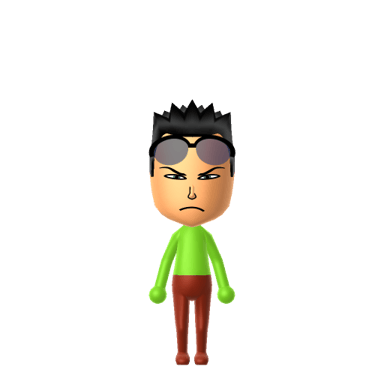
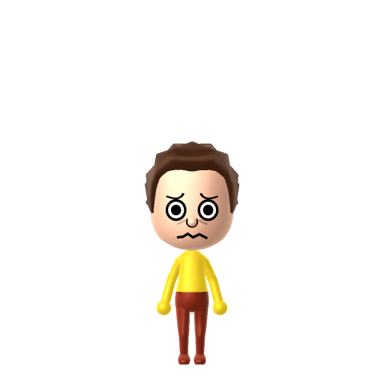
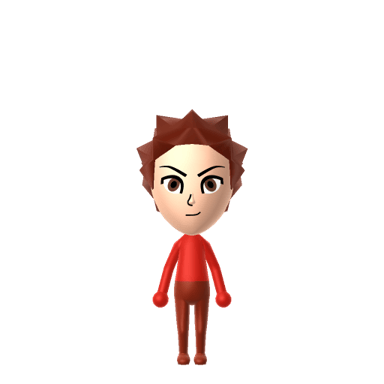
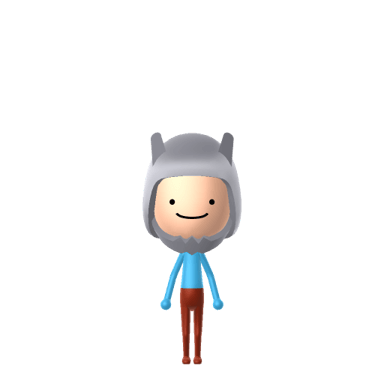
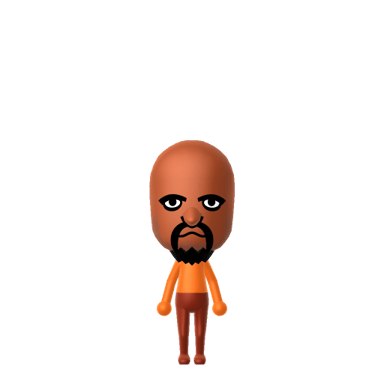
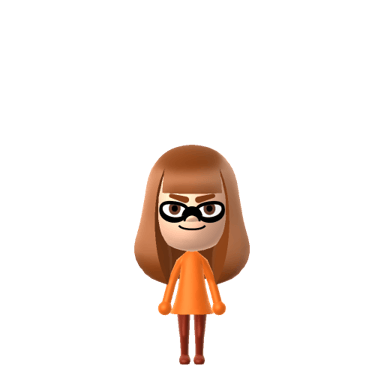
Real Miis built with this online Mii creator
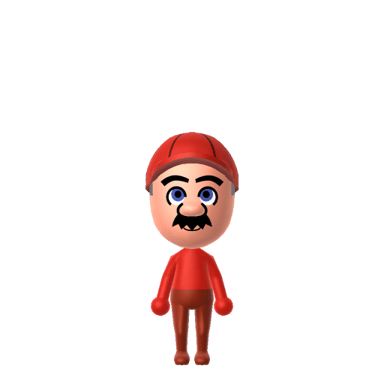
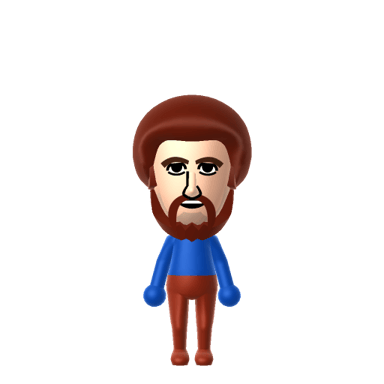
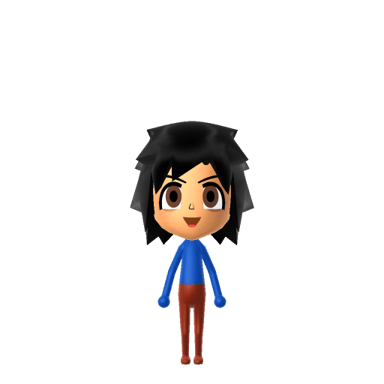
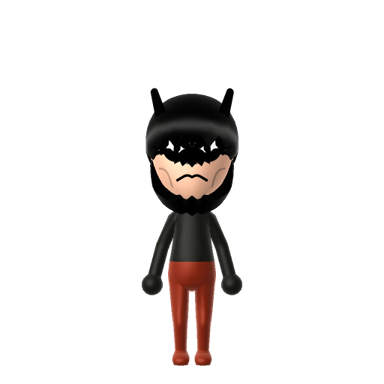
Every Mii in our gallery was assembled in this Mii creator online, exported as a Mii Studio code, and rebuilt in Tomodachi Life: Living the Dream. Tap one for the recreation guide — or scroll to the editor below to start your own.
Loading the Mii editor…
🔗 Share or edit laterTap to expand ↓Copy the Mii Studio code (hex) to paste back here later, send to a friend, or use in other community Mii editors. Also: 3DS-format QR code download.
0400***010dWhat you can customize in this online Mii creator
The Mii creator online covers every part of a Mii's face and build, so you can recreate yourself, a friend, or a character from scratch:
Face shape & skin tone
Pick the head outline and a skin colour from a grid of rendered thumbnails.
Hair
Over 130 hairstyles plus a hair colour, and you can flip the parting to either side.
Eyebrows
Choose the brow style, then fine-tune colour, size, angle, spacing and height.
Eyes
Sixty eye shapes, plus colour, size, stretch, rotation, spacing and vertical position.
Nose
Eighteen nose shapes, with size and how high it sits on the face.
Mouth
Thirty-six mouth shapes, plus lip colour, size, stretch and position.
Facial hair
Moustache and beard styles, sizes, colour and placement.
Glasses
Frame style, colour, size and height — or none at all.
Beauty mark
Toggle a beauty mark on and move it anywhere on the face.
Build
Gender, height, weight and a favourite colour picked from twelve swatches.
How the online Mii creator works
Every part picker shows real rendered thumbnails of your current Mii with each option applied — zoomed into the eyebrows, eyes, nose or mouth where that helps — so you choose by how it looks rather than by a number. The big lists (like 130-plus hairstyles) are paginated so the online Mii creator only loads a couple of rows of thumbnails at a time, and rendered images are cached so revisiting an option is instant.
Nothing leaves your browser except the request that draws each preview image. When you finish, the online Mii creator hands you a Mii Studio data code and a PNG download; drop the code into the Mii Decoder for step-by-step Mii Maker instructions (Switch / Switch 2 and 3DS) so you can rebuild the exact same Mii in Tomodachi Life: Living the Dream.
Where you can use the Mii you make
A Mii is Nintendo's portable avatar used across Wii, Wii U, Nintendo 3DS, Switch and Switch 2 systems, plus several Nintendo mobile apps. The Mii you build here uses the same Mii Studio data format as Nintendo's official Mii Studio web tool — meaning the code you export is recognized everywhere a Mii Studio code goes.
| Where to use it | How to bring your Mii in |
|---|---|
| Tomodachi Life: Living the Dream (Switch / Switch 2) | Switch and Switch 2 don't have a camera, so QR scanning isn't available. Send your Studio code through the Mii Decoder to get step-by-step Mii Maker instructions, then rebuild the Mii in-game. |
| Tomodachi Life (3DS) | Use the Export 3DS QRoption in the “Share or edit later” panel above. Scan the resulting QR with the 3DS's Mii Maker, then bring the Mii into Tomodachi Life. |
| Nintendo Switch Sports | Switch Sports uses your system Mii. Rebuild this Mii in your Switch's Mii Maker (via the Decoder's step-by-step guide), then pick it from your saved Miis in Switch Sports. |
| Mario Kart 8 Deluxe | Same flow as Switch Sports — Mario Kart 8 Deluxe lets you race as any Mii saved to your system. Rebuild this Mii once, race with it forever. |
| Super Smash Bros. Ultimate | Smash Bros. supports Mii Fighters (Brawler / Swordfighter / Gunner). Build your Mii in your Switch's Mii Maker first, then pick it as a Mii Fighter base in-game. |
| Other Mii editors & community tools | Anywhere that accepts a Mii Studio code (Nintendo's own Mii Studio, community editors, render APIs). Just copy the code from the “Share or edit later” panel. |
Five common Mii-making mistakes (and how to avoid them)
Most off-looking Miis fall into one of a small number of design traps. None of these are fatal — the online Mii creator lets you tweak anything at any time — but spotting them early saves a lot of fiddling.
1. Picking hair before face shape
Hair sits visually on top of the face, so the same hairstyle looks completely different on a round vs. long face. Lock in the face shape first, then layer hair on top. Most players who get stuck endlessly cycling hairstyles are actually fighting a face shape they haven't committed to yet.
2. Eyebrow colour doesn't match hair
A universal art convention: real-world eyebrows usually read as the same colour as the hair, or one shade darker. The Mii creator lets you pick any eyebrow colour freely, so it's easy to leave a default brown brow on a blonde Mii. Match them — or contrast them deliberately, not accidentally.
3. Eye size too large for an adult character
Larger eyes read younger and cuter; smaller eyes read older and more serious. If you're making a Mii of an adult — a celebrity, a relative, a grown-up character — the default Mii eye size is often too large. Shrink it a notch.
4. Skin tone temperature mismatch
Mii Maker offers a small palette of skin tones that vary in warmth (peach-toward-yellow vs. neutral vs. cool). For real people, getting the temperature right matters more than the exact lightness. A face that feels 'off' is often a cool undertone on a warm-toned palette pick (or vice versa) — try the neighbouring swatch.
5. Forgetting facial hair on an adult male Mii
The Mii creator's default is clean-shaven. For an adult male character or someone with even a subtle stubble in real life, leaving the face bare can make the Mii look 10+ years younger than intended. Try the lightest stubble option first — it often adds more presence than a full beard.
What is a Mii Studio code — and what to do with one
A Mii Studio codeis a hexadecimal string — usually around 96 characters of lowercase a-f and digits — that encodes every choice you made for a Mii: face shape, skin tone, the exact hair option, eye angle, lip colour, every slider. It's the format used by Nintendo's own Mii Studio web tool and is recognised by most third-party Mii editors, including this one and the Mii Decoder.
Three things you can do with a Studio code once you have it:
- Save it for later.Paste it back into the “Start from a code” box in this online Mii creator next time you visit, and continue editing the same Mii.
- Send it to a friend. Studio codes are text — copy, paste into chat, email, a Discord server, a Reddit comment. Anyone with a Mii-aware tool can render the same Mii from it.
- Turn it into in-game steps. Paste it into the Mii Decoder and it generates the exact picker-by-picker instructions for both Switch and 3DS Mii Maker — so you can rebuild the Mii inside Tomodachi Life: Living the Dream (LTD) or any other Mii-aware Nintendo game.
Studio code vs. 3DS QR code:the QR format is an older 3DS-only format that only the 3DS's camera can scan. The Switch and Switch 2 have no camera, so QR can't import directly there. For modern Nintendo games on Switch / Switch 2 (including Tomodachi Life: Living the Dream), the Studio-code + Decoder pipeline is the path that actually works.
A short history of the Mii system
Per Wikipedia's Mii article, the Mii is a customizable avatar that Nintendo has carried across every modern system it has released — Wii, Wii U, DS, 3DS, Switch and Switch 2. The name is a portmanteau of “Wii” and “me”: a Mii is supposed to be the player's avatar of themselves.
Wii era — the original Mii Channel (2006)
The Mii was introduced alongside the Nintendo Wii in 2006. The Mii Channel let players create avatars using a face-builder; Wii Sports made the Mii a cultural icon by turning every player's avatar into a tennis player and a bowler.
3DS era — Mii Maker + QR sharing (2011 onward)
The Nintendo 3DS introduced Mii Maker as a system-level app and added a hugely consequential feature: QR-code sharing. For the first time, players could trade Mii designs by scanning a square on a friend's screen. The original Tomodachi Life (3DS, 2013) and Tomodachi Collection in Japan made the Mii the central character of a whole simulation game.
Switch era — Mii Maker in system settings (2017 onward)
On the Nintendo Switch, Mii Maker moved into system settings rather than a standalone app. Several Switch games tap that shared Mii roster — Nintendo Switch Sports, Mario Kart 8 Deluxe, Super Smash Bros. Ultimate's Mii Fighters — making the Mii a cross-game identity again. Crucially, the Switch dropped the 3DS's camera, so QR-code Mii import was no longer possible at the system level.
Mii Studio + Tomodachi Life: Living the Dream
Nintendo's Mii Studio web tool standardised a portable Mii Studio data code that works across recent tools and games. Tomodachi Life: Living the Dream brings the Tomodachi formula to Switch / Switch 2 — and because the Switch has no camera, the way to bring a Mii in is via Mii Maker plus the Mii Studio code pipeline this site uses end-to-end.
About this Mii creator online
People look for a Mii creator online for all sorts of reasons — to plan a Mii before touching a console, to make a Mii of a friend or a celebrity for an island, to put a face to a character idea, or just to mess around. This tool lets anyone make a Mii online without a Nintendo system: pick parts, randomize, preview, and walk away with a code.
It pairs with the rest of the site: the Mii ideas gallery for inspiration, the QR code Mii decoder for turning a code or QR back into rebuild instructions, the Tomodachi Life Personality Calculator (and its MBTI mapping) for choosing the slider values that decide how your Mii behaves, and the personality quiz to find your own type. Looks are only half a Mii.
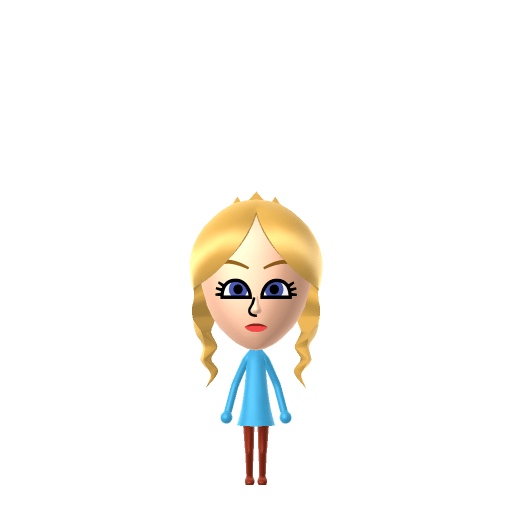
Elsa

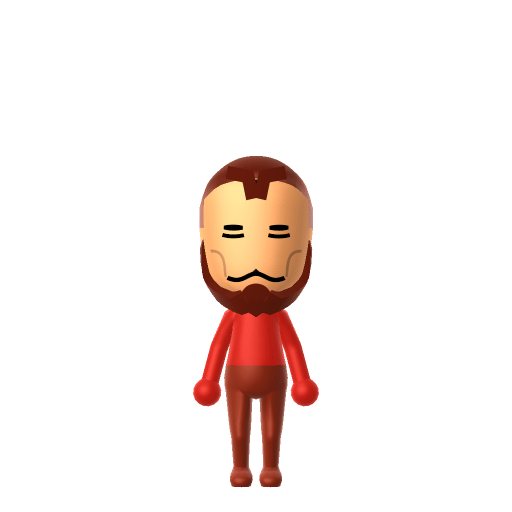
Iron Man
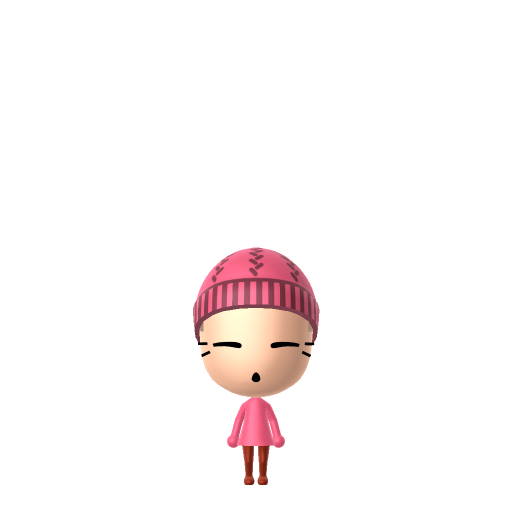
Hello Kitty
★ From the gallery
Just built someone good?
Drop your fresh Mii on the community wall and let other players recreate it on their island.
Post your Mii →Need inspiration?
Browse the Mii ideas gallery — characters from games, anime, movies and more, each with a recreation guide.
Give it a personality
Use the Personality Calculator to pick the slider values that make your Mii behave the way you want in Tomodachi Life.
Give it a catchphrase
Find the perfect Tomodachi Life phrase for your Mii — browse real pet phrases and generate ideas with the phrase generator.
Give your Mii a voice
Type any text and hear it spoken in the Mii voice — great for testing catchphrases before you commit them on your island.
Mii creator online — FAQ
Is this Mii creator online free?
Yes. This online Mii creator is completely free and runs entirely in your browser — no account, no download, no install. The only network request it makes is to a public Mii rendering service to draw the preview images.
How do I make a Mii online here?
Open a section (Hair, Eyes, Nose, …), pick an option from the thumbnail grid or drag a slider, and watch the live preview update. Hit Randomize for a fresh Mii to start from. When you like what you see, copy the Mii Studio code or open it in the Mii Decoder for step-by-step instructions to rebuild it in a game.
Can I use a Mii I create online in Tomodachi Life?
Tomodachi Life: Living the Dream (Switch / Switch 2) has no QR scanner, so you can't import a Mii directly. Copy your Mii's Studio code and paste it into the Mii Decoder — it generates step-by-step Mii Maker instructions to rebuild the same face in-game. On the original 3DS Tomodachi Life you can also rebuild it from those steps.
What does this online Mii creator give me when I'm done?
A Mii Studio data code — a hex string holding your Mii's full appearance in Nintendo's Mii Studio format, the same format used by Mii rendering tools and community editors. You can share it, render it elsewhere, or feed it to the Mii Decoder for recreation steps. You can also download a PNG of the finished Mii.
Can I load an existing Mii to edit?
Yes — paste any Mii Studio code into the "Start from a code" box and the online Mii creator loads it so you can tweak it. To go from a QR code to a Studio code first, run the QR through the Mii Decoder.
Does the Mii creator online work on mobile?
Yes. It's a responsive web tool, so the editor and the thumbnail pickers work on a phone or tablet as well as a desktop browser.
Why does the editor show a different Mii every time I open it?
On purpose — each visit starts the online Mii creator from a fresh randomised (but sensible) Mii so you always have a face to riff on. Press Reset for a plain baseline Mii, or Randomize for another random one.
What's the difference between the Mii Studio code and the QR code?
The Mii Studio code is a portable hex text string that works across modern Mii tools and games (including the Switch / Switch 2 path into Tomodachi Life: Living the Dream). The 3DS-format QR code is an older format that only the Nintendo 3DS's camera can scan — useful if you're playing the original Tomodachi Life on a 3DS, but the Switch and Switch 2 have no camera, so QR import isn't available there. For Tomodachi Life: Living the Dream, use the Studio code + Mii Decoder path.
Why does the page send me to the Mii Decoder instead of directly into Tomodachi Life?
Tomodachi Life: Living the Dream (Switch / Switch 2) has no in-game Mii import — the only way to put a specific Mii on your island is to rebuild it manually in the Switch's Mii Maker. The Mii Decoder takes your Studio code and generates the picker-by-picker steps (which face shape, which hair, which eye index, etc.) so you can recreate this exact Mii in-game faithfully.
Can I make a Mii of a real person — a celebrity, a friend, myself?
Yes. The online Mii creator works just as well for likenesses as for invented characters — most players use it for real people or favourite fictional characters. A reference photo helps; pick the face shape and skin tone first, then layer on hair, eyes, brows, nose, mouth, and any glasses or facial hair from there. The Common Mistakes section above lists the traps to watch for when you're matching a real face.
Will my Mii look exactly the same when I rebuild it in-game?
If you follow the Mii Decoder's step-by-step instructions exactly, yes — every picker selection in the guide maps directly to a Mii Maker option in the game. The preview images on this page are rendered using the same Mii Studio renderer Nintendo uses, so what you see here is faithful to what you'll see in the game's character viewer.
My pasted Mii Studio code isn't loading. What's wrong?
Most failures come from a truncated paste or accidental whitespace. A valid Mii Studio code is around 96 hexadecimal characters (a-f and 0-9, no spaces). Re-copy the full string from wherever you got it, make sure there are no line breaks or trailing spaces, and paste it into the 'Start from a code' box.